
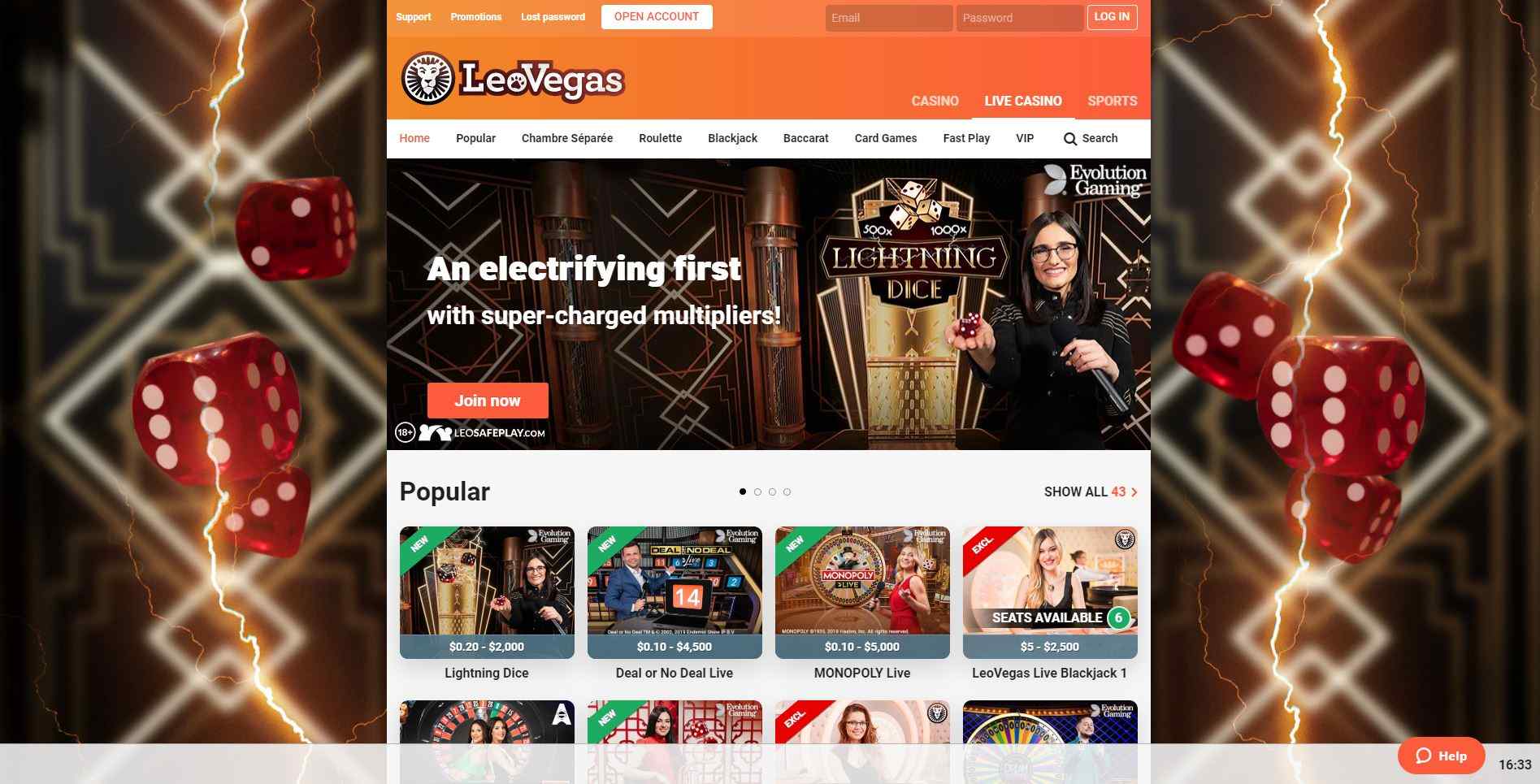
Open the LeoVegas Casino app and the number of slots, table games and live dealer tables can seem overwhelming. The provider filter introduces order to the lobby fast. In place of scrolling through hundreds of titles, you can narrow the whole catalogue to games from one studio you trust. The filter is positioned prominently inside the game lobby, so you select a provider name and immediately see only its releases. Irish players who track developers like NetEnt, Play’n GO, Pragmatic Play or Evolution will see this tool transforms how they browse. This guide details what makes the provider filter useful, how to install the LeoVegas app on an iPhone or Android handset, device compatibility, and how to use the filter to save time and locate games that fit your style.
What the Provider Filter Does
The provider filter is a selection tool that displays only games from one software studio. Tap “NetEnt” and you see every NetEnt title on the platform, not a mixed lobby from dozens of developers. The filter functions across casino, live casino and often jackpot sections, filtering out the library of a provider whose volatility, bonus features or streaming quality you already trust. It reduces visual clutter, aids your decision-making faster and eliminates the fatigue of endless scrolling. The filter also works as a discovery tool. When a studio you like releases a new title, you will see it inside that filtered view, often before it shows up in the general “new games” carousel. This is not a hidden feature; it sits where anyone can find it and demands no special settings. The filter does not delete games from your account or change wagering options; it only adjusts what you see on screen. The full library is kept available, and you can remove the filter with another tap. It does not influence loading times or game performance, because it only modifies the lobby display. The list of providers reflects the studios that currently provide games to LeoVegas in Ireland, and it refreshes automatically. If a provider is missing, it is usually because that studio does not yet possess a licence for the Irish market, and the filter skips the name rather than showing an empty category.
Employing the Provider Filter: A Step-By-Step Walkthrough
Once the app is installed and you are logged in, the provider filter is rarely more than a tap or two away. The exact location can vary slightly between updates, but the logic stays steady. When you enter the casino lobby, look close to the top of the game grid or just below the main promotional banner. You will commonly see a row of quick-filter chips or a button labelled “Providers”, “Filter” or an icon resembling a funnel. Tapping it opens a list of all available software studios, typically arranged alphabetically. Some versions include a search field inside the provider list, which helps when the catalogue includes dozens of studios. After you tap a provider name, the lobby instantly refreshes to show only that developer’s games. A small indicator verifies which filter is active. To remove the filter and return to the full library, tap the same provider name again to deselect it, or use a “Clear all” option if present. The following steps summarize the process:
- Open the casino lobby and locate the provider filter button near the top of the screen.
- Press the button to open the full list of available studios.
- Navigate or use the search field to find the provider you want, then tap its name.
- The lobby refreshes to display only games from that studio; a label confirms the active filter.
- To clear the filter, tap the provider name again or use the “Show all” option.
The game provider filter can be used together other sorting tools. As an illustration, you might select “NetEnt” and subsequently use the search function within that filtered view to find a specific title such as Starburst. You might also apply the provider filter and then sort the outcomes according to popularity or by release date. This combined strategy assists when a game developer offers an extensive catalog and you want to find a high-volatility slot without needing to scroll past every icon. This filter also functions in the live casino part, where you can isolate Evolution tables or those from other live dealer vendors. The filter works swiftly; there is no visible delay when switching between providers, even on less powerful hardware, because the app loads game thumbnails dynamically rather than refreshing the complete game lobby from scratch.
Concrete Examples of Filter Application in Use
Imagine you like the characteristic maths models and bonus rounds in Play’n GO slots. You launch the app, tap the provider filter, select Play’n GO, and right away see titles like Book of Dead, Reactoonz and Legacy of Egypt arranged in a clean grid. You see a game you have not played before, scroll down and launch it within seconds. Another scenario: you desire a quick session of live roulette but only trust the streaming quality of Evolution. You switch to the live casino tab, apply the Evolution filter, and the lobby now shows only Evolution’s roulette, blackjack and game show tables, hiding any other live supplier’s streams. This removes guesswork and lets you jump straight into a familiar environment. A third example involves jackpot slots. If you know that Yggdrasil or Microgaming produce many of the progressive jackpots you enjoy, you can filter by those providers and then visually scan for the jackpot badge on the thumbnails. The filter does not automatically separate jackpot games from standard ones, but by narrowing the field to a single provider, you can spot the jackpot indicators much faster. These small time savings add up across a week of play and make the mobile experience feel more personal.
Downloading the App and Verifying Device Compatibility
Getting the LeoVegas Casino app in Ireland is straightforward, but the steps change a little between Apple and Android devices. The app is free, and you require a registered LeoVegas account to log in and play. We advise downloading directly from the official LeoVegas website rather than third-party stores, because that guarantees you get the latest, verified version. The mobile site automatically recognizes your operating system and offers the correct download button. If you already have an account, you can sign in immediately after installation; new players can complete registration inside the app, including age and identity verification as demanded by Irish regulations. The app is compact and runs efficiently even on handsets that are a few years old, assuming they meet the minimum operating system requirements we cover below.
Setting Up on iOS
For iPhone and iPad owners, the LeoVegas Casino app is obtainable through the Apple App Store. Visit the LeoVegas website on your device, select the iOS download link and you will be directed to the App Store listing, or access the App Store and search for “LeoVegas Casino”. Look for the official app published by LeoVegas Gaming plc to ensure you are downloading the genuine application. Press “Get” and the app loads automatically, setting its icon on your home screen. Apple’s standard review process offers a layer of security. You need a relatively recent version of iOS; as a general rule, if your device handles iOS 14 or later, you should have no trouble. The app will prompt you to update when a new version is launched, and we suggest installing those updates promptly to maintain the provider filter and other features working smoothly. No jailbreaking or special configuration is needed, and installation takes less than a minute on a typical Wi‑Fi connection.
Setting up on Android
Android device owners in the Republic of Ireland will not locate the LeoVegas Casino app on the Google Play Store owing to Google’s policies on real-money gambling applications. Rather, you obtain the app as an APK file straight from the LeoVegas website. Go to the LeoVegas mobile site using your Android phone or tablet, and tap the “Download for Android” button to begin the APK download. Before you can deploy the file, your device will ask you to allow installations from unknown sources. Navigate to Settings, then Security or Apps & notifications, and activate “Install unknown apps” for the browser you used. Launch the downloaded APK and adhere to the on-screen prompts. The installation completes quickly, and the LeoVegas icon appears in your app drawer. It is essential to download the APK only from the official LeoVegas domain, because third-party sites may offer outdated or modified files. After installation, you can turn off the unknown sources permission again if you prefer. The app will alert you when an update is available; you will be required to download the new APK manually, but your account data and preferences remain intact.
System Compatibility and Technical Requirements
The LeoVegas mobile application is designed to function on a extensive range of mobile devices, but there are minimum software requirements. For Apple devices, the app usually requires iOS 14.0 or later, making it suitable with iPhone 6s and newer, all iPhone SE generations, iPad Air 2 and later, and iPad mini 4 and newer. On Android, the app usually asks for Android 7.0 (Nougat) or higher, covering handsets from Samsung, Huawei, Xiaomi, OnePlus and Google Pixel. Tablets are accommodated, though the interface is tailored mainly for phone-sized screens. We have tested the app on mid-range devices with 3 GB of RAM and discovered the lobby, including the provider filter, to be quick. The app is not particularly demanding on hardware because most processing happens on LeoVegas servers. A stable internet connection counts more than raw processing power. Screen size and resolution influence how comfortably you can use the provider filter; on smaller screens the filter button may be tucked into a menu, but it stays fully functional. We suggest keeping your operating system updated to the latest version your hardware supports, not just for app compatibility but also for security patches. If you are uncertain whether your device meets the requirements, check the LeoVegas website on your mobile browser; it will recognize your OS version and either present the download or display a message if your system is too old.
Application Performance, Data Usage and Safety While Using Filters
Applying the provider filter does not place additional strain on your device’s processor or battery, because the filtering occurs at the interface level. The app already holds the metadata for each game, including its provider, so switching a filter just instructs the lobby to hide or show specific thumbnails. We have observed no noticeable difference in loading times or frame rates when switching between filtered and unfiltered views. The app’s overall performance remains consistent with what you might expect from a well-optimised native application: smooth scrolling, quick game launches and stable live streams. Data usage is yet another practical concern for players who use mobile data instead of Wi‑Fi. The provider filter itself does not raise data consumption; the only data involved is the minor amount needed to update the lobby view when you change filters. The games themselves are the main consumers of data, and that stays unaffected by the way you reached them. If you are aware of your data allowance, we recommend connecting to Wi‑Fi for longer live casino sessions, but casual slot play filtered by provider will not unexpectedly raise your usage.
Security is a topic we take seriously, and the provider filter functions entirely within the secure environment of the LeoVegas app. It needs no any additional permissions, and it does not access personal data beyond that which the app already uses to display the game catalogue. The filter list is generated server-side, meaning you are always getting an accurate, up-to-date reflection of the providers that LeoVegas has active agreements with in Ireland. There is no risk of the filter exposing you to unlicensed or third-party content, as every game you see has already passed regulatory checks. The app itself uses encryption to protect your account details and financial transactions, and the presence of the filter does not affect those protections. From a responsible gaming standpoint, the filter can indirectly help safer play by lessening the temptation to browse endlessly and stumble upon games that might encourage impulsive decisions. While it is not a formal responsible gaming tool, the clarity it brings to the lobby can help you maintain the session length and spending limits you set for yourself.
In what way the Provider Filter Boosts Your Mobile Casino Sessions
On a small screen, each unnecessary tap and swipe can feel friction. The provider filter reduces that friction by letting you bypass large parts of the catalogue that do not interest you. For Irish players who value efficiency, this means less time searching and more time experiencing the games themselves. Beyond speed, the filter promotes a more intentional style of play. When you deliberately pick a provider, you make a conscious decision about the type of experience you want, whether that is the high-energy audio-visual style of Pragmatic Play, the narrative depth of Quickspin or the classic fruit-machine simplicity of a studio like Novomatic. This intentionality can help you stay within your comfort zone and sidestep chasing unfamiliar games simply because they appear at the top of the lobby. The filter also makes it easier to stick to a budget, because you are less likely to be diverted by flashy new titles from providers you have no experience with.
The provider filter also strengthens your relationship with the studios you trust. If you monitor a particular developer’s release schedule, you can periodically check that provider’s filtered view to see if a new game has been added. LeoVegas typically rolls out new titles quickly after they launch, so the filter becomes a reliable way to watch fresh content without relying on promotional banners that might not highlight every release. For live casino enthusiasts, filtering by provider guarantees that you are playing on tables with the rule sets, camera angles and dealer interaction styles you prefer. Evolution tables, for example, follow a consistent interface design across their roulette, blackjack and baccarat games, so filtering by Evolution creates a uniform experience that cuts down on the learning curve when switching between game types. In a market where mobile play now dominates, tools like this move the app beyond a simple container of games and turn it into a personalised gaming hub that conforms to your habits.
Comparing the App Experience to Desktop: Filters and Beyond
Players who use LeoVegas on desktop and mobile will notice that the provider filter operates in a comparable way across platforms, but the app’s implementation is built specifically for touch. On the desktop site, the filter might appear as a dropdown menu or a sidebar list, whereas on the app it is commonly a row of tappable chips or a full-screen picker that is easy to navigate with a thumb. This mobile-first thinking creates a real difference when you are clutching a phone with one hand. The app also has a tendency to load the filtered results with a subtle animation that maintains you oriented, while the desktop version simply refreshes the grid. Another difference is that the app can save your last-used filter locally, so if you exit the app while viewing only Play’n GO games and reopen it later, you may find that filter still applied, depending on the session behaviour. The desktop site typically resets filters when you log out or close the browser tab. This persistence on mobile can be a time-saver for players who always stick to one or two providers.
Aside from the filter itself, the app offers a few advantages that enhance the provider-focused browsing experience. Touch-optimised game thumbnails are greater relative to screen size, making it simpler to recognise a game’s artwork at a glance when you have filtered down to a single studio’s portfolio. The app also enables push notifications, which can alert you when a provider you favour releases a new game, though you must to manage notification preferences carefully to avoid unwanted alerts. The desktop experience, on the other hand, might offer a wider view that shows more games at once, which some players prefer for broad browsing. The choice between app and desktop hinges on where you play most often, but the provider filter itself is equally functional on both. We find that the app’s version seems faster and more intuitive because it was developed for the gestures and screen constraints of modern smartphones. For Irish players who mainly gamble on mobile, the filter becomes a standard part of the daily routine, much like organizing a music library by artist.
Advice for Making the Most of the Provider Filter
To receive the full value from the provider filter, we suggest a few practical habits that take seconds to adopt but yield benefits over time https://leovegas-casino.cc/en-ie/app. Start by getting to know the full list of providers available in the app. You may discover a studio you had overlooked, such as Thunderkick or Red Tiger, whose games could become new favourites. Spend a few minutes checking out one unfamiliar provider per session; you are not committing any money, just examining the thumbnails and perhaps trying a demo version if the app offers one. Another habit is to pair the provider filter with the search function to pinpoint specific titles quickly. If you know you want to play a particular game but cannot remember its exact name, filtering by the likely provider limits the field dramatically and makes the search bar more effective. You can also use the filter as a shortcut when you want to play a specific category of game that a provider is known for. For instance, if you want a high-RTP slot, you might filter by a studio that publishes payout percentages openly, such as NetEnt, and then check individual game info pages. The following list summarises key tips:
- Explore one unknown provider each session to uncover new favourites without risk.
- Pair the provider filter with the search bar to locate specific titles faster.
- Sort by a studio known for a particular trait, such as high RTP or fast-paced gameplay, to suit your mood.
- Check the provider filter after app updates, as new studios are often added quietly.
- If the filter behaves unexpectedly, restart the app or clear the cache to fix minor glitches.
Another helpful approach is to build a mental shortlist of two or three providers that suit different moods or session lengths. When you have only ten minutes, you might select by a provider known for fast-paced, low-volatility slots that let you spin quickly. For a longer evening session, you might move to a studio famous for feature-rich games with elaborate bonus rounds, where the entertainment value per spin seems higher. The filter makes these transitions easy. We also advise checking the provider filter after every major app update, because new studios are sometimes added without much fanfare. LeoVegas regularly grows its game library, and a new provider appearing in the filter list is often the first sign that fresh titles have arrived. If you ever find that the filter is not behaving as expected, such as showing games that do not belong to the selected provider, a quick app restart or cache clear usually resolves the issue. These minor glitches are rare and do not affect gameplay, but knowing how to handle them keeps your experience smooth.